

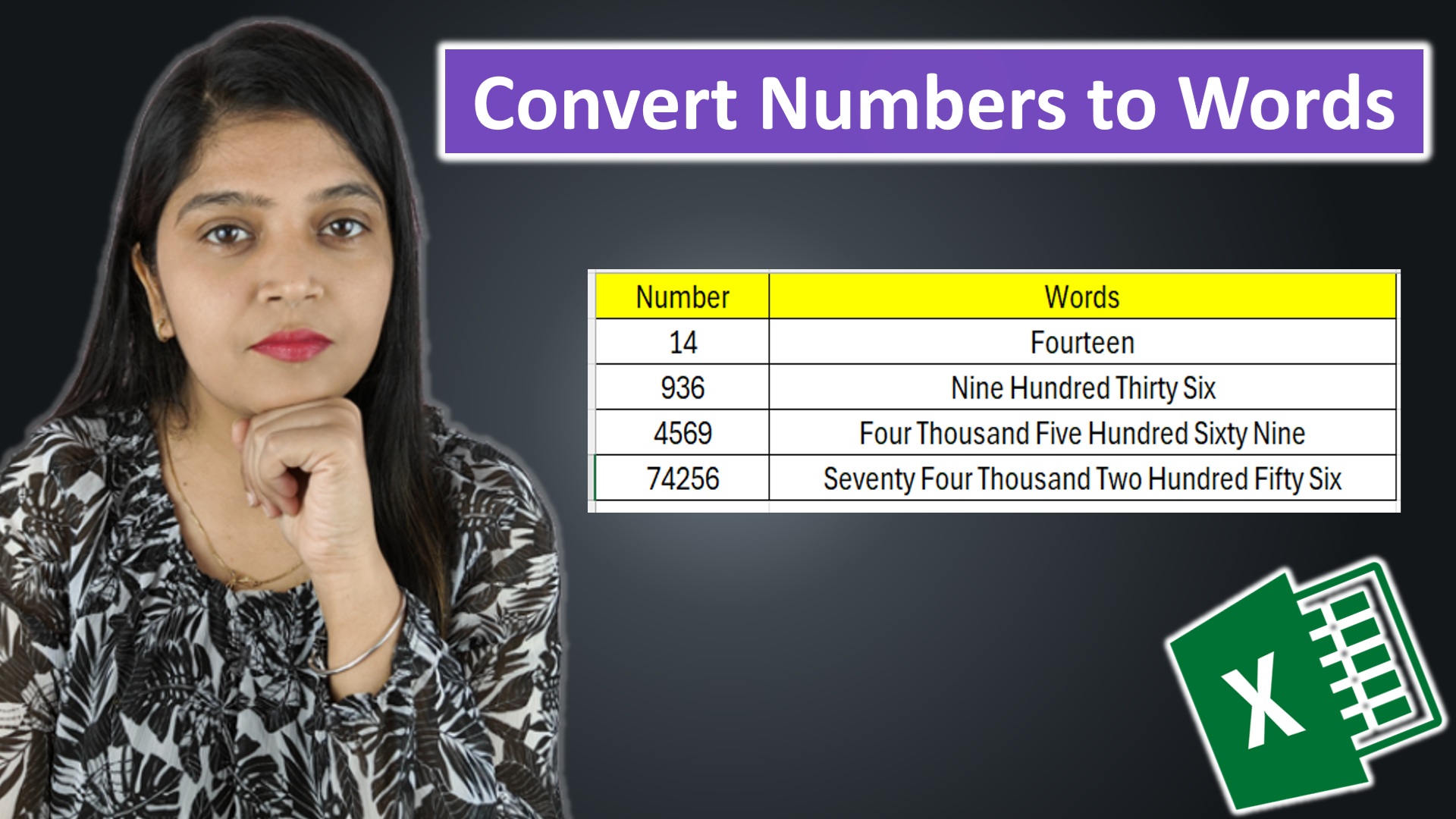
Have you ever needed to convert a number like 1250 into its word form – “One Thousand Two Hundred Fifty” – directly inside Microsoft Excel? If yes, you’re not alone. Many users want to automate this process, especially when creating invoices, printing cheques, or generating financial reports. Unfortunately, Excel doesn’t have a built-in function to handle this. But don’t worry – there’s a neat solution using VBA (Visual Basic for Applications).
In this post, I’ll walk you through the process of converting numbers to words in Excel using a simple custom function. It takes only a few minutes, and once it’s set up, you’ll be able to reuse it anytime.
Step 1: Open Excel and Access the VBA Editor
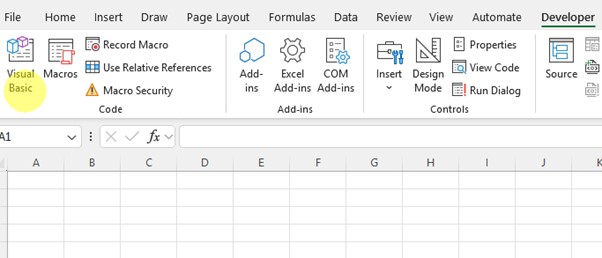
First, open your Excel workbook where you want to enable number-to-word conversion.
Then, press Alt + F11 to launch the Visual Basic for Applications (VBA) editor. This is where we’ll insert our custom code.
Step 2: Insert a New Module
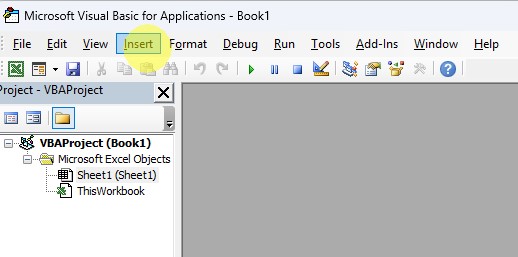
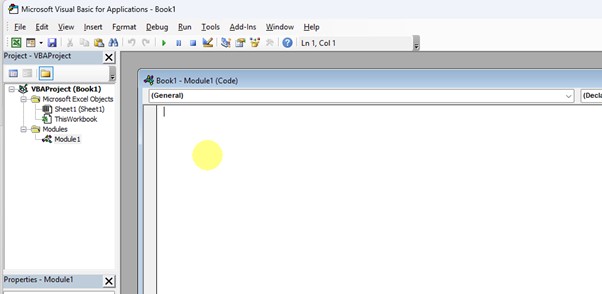
In the VBA editor, go to the top menu and click Insert → Module. A blank module window will appear – this is where you’ll paste the function code.
Step 3: Paste the VBA Code
Copy and paste the following code into the module window:
Function NumberToWords(ByVal MyNumber)
    Dim Units As String
    Dim SubUnits As String
    Dim TempStr As String
    Dim DecimalPlace As Integer
    Dim Count As Integer
    Dim Hundred As String

    ReDim Place(9) As String
    Place(2) = " Thousand "
    Place(3) = " Million "
    Place(4) = " Billion "
    Place(5) = " Trillion "

    ' Convert MyNumber to string and trim white space.
    MyNumber = Trim(CStr(MyNumber))

    ' Find position of decimal place.
    DecimalPlace = InStr(MyNumber, ".")

    ' Convert SubUnits and set MyNumber to Units amount.
    If DecimalPlace > 0 Then
        SubUnits = GetTens(Left(Mid(MyNumber, DecimalPlace + 1) & "00", 2))
        MyNumber = Trim(Left(MyNumber, DecimalPlace - 1))
    End If

    Count = 1
    Do While MyNumber <> ""
        TempStr = GetHundreds(Right(MyNumber, 3))
        If TempStr <> "" Then Units = TempStr & Place(Count) & Units
        If Len(MyNumber) > 3 Then
            MyNumber = Left(MyNumber, Len(MyNumber) - 3)
        Else
            MyNumber = ""
        End If
        Count = Count + 1
    Loop

    NumberToWords = Application.Trim(Units)
End Function

Private Function GetHundreds(ByVal MyNumber)
    Dim Result As String

    If Val(MyNumber) = 0 Then Exit Function
    MyNumber = Right("000" & MyNumber, 3)

    ' Convert the hundreds place.
    If Mid(MyNumber, 1, 1) <> "0" Then
        Result = GetDigit(Mid(MyNumber, 1, 1)) & " Hundred "
    End If

    ' Convert the tens and ones place.
    If Mid(MyNumber, 2, 1) <> "0" Then
        Result = Result & GetTens(Mid(MyNumber, 2))
    Else
        Result = Result & GetDigit(Mid(MyNumber, 3))
    End If

    GetHundreds = Result
End Function

Private Function GetTens(TensText)
    Dim Result As String

    Result = ""           ' Null out the temporary function value.
    If Val(Left(TensText, 1)) = 1 Then   ' If value between 10-19...
        Select Case Val(TensText)
            Case 10: Result = "Ten"
            Case 11: Result = "Eleven"
            Case 12: Result = "Twelve"
            Case 13: Result = "Thirteen"
            Case 14: Result = "Fourteen"
            Case 15: Result = "Fifteen"
            Case 16: Result = "Sixteen"
            Case 17: Result = "Seventeen"
            Case 18: Result = "Eighteen"
            Case 19: Result = "Nineteen"
            Case Else
        End Select
    Else                                 ' If value between 20-99...
        Select Case Val(Left(TensText, 1))
            Case 2: Result = "Twenty "
            Case 3: Result = "Thirty "
            Case 4: Result = "Forty "
            Case 5: Result = "Fifty "
            Case 6: Result = "Sixty "
            Case 7: Result = "Seventy "
            Case 8: Result = "Eighty "
            Case 9: Result = "Ninety "
            Case Else
        End Select
        Result = Result & GetDigit(Right(TensText, 1))   ' Retrieve ones place.
    End If

    GetTens = Result
End Function

Private Function GetDigit(Digit)
    Select Case Val(Digit)
        Case 1: GetDigit = "One"
        Case 2: GetDigit = "Two"
        Case 3: GetDigit = "Three"
        Case 4: GetDigit = "Four"
        Case 5: GetDigit = "Five"
        Case 6: GetDigit = "Six"
        Case 7: GetDigit = "Seven"
        Case 8: GetDigit = "Eight"
        Case 9: GetDigit = "Nine"
        Case Else: GetDigit = ""
    End Select
End Function
Step 4: Use the Formula in Excel
Close the VBA editor and return to your worksheet. Now in a blank cell, type:
=NumberToWords(A1)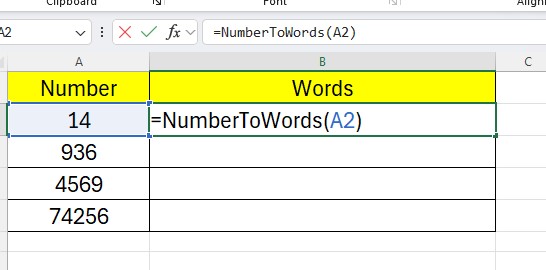
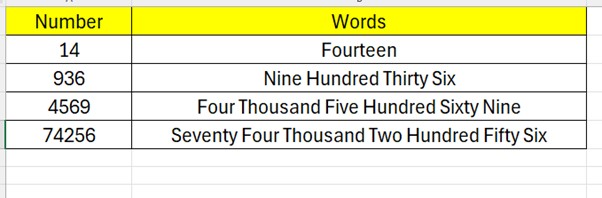
Once you’ve added this macro to your Excel workbook, you’ll never need to manually write out numbers in words again. It’s a huge time-saver, especially for businesses and accountants.
If you have another enquiry the comment box is down. Stay tuned for more such articles. Bye and have a nice day!
Leave a Comment